 FORGE
FORGEThe Forge window
Where everything is: the top bar, the menu, search and each chart’s toolbar.
At a glance
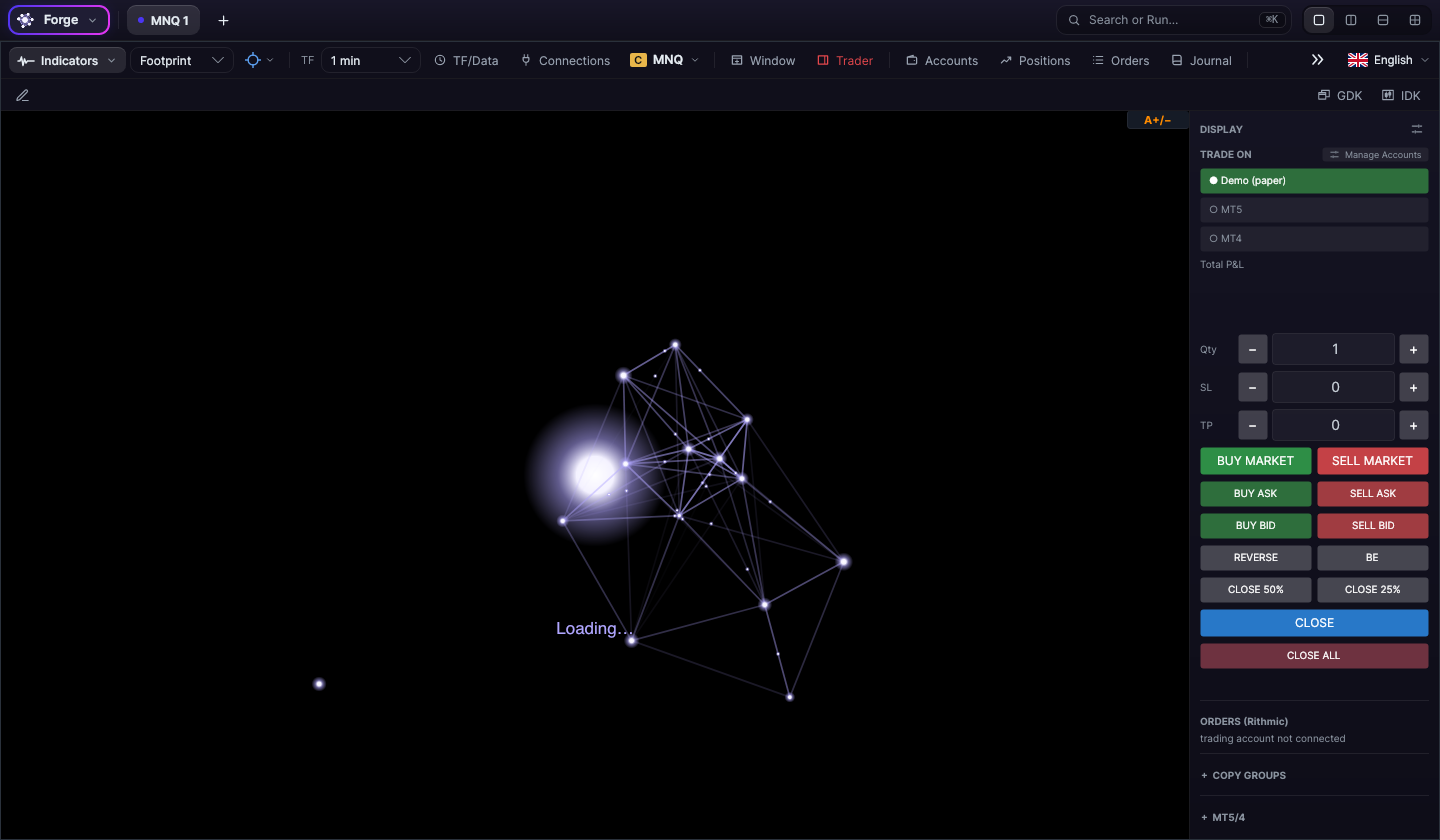
The window has three strips at the top:
- The top bar: the Forge menu, the chart tabs, search and the pane layout.
- The chart bar: indicators, chart type, timeframe, instrument and the trading windows.
- The drawing row: the pencil that opens the drawing bar and, on the right, GDK and IDK (the workspaces).
The top bar
- Forge (on the left): opens the menu.
- Chart tabs: one per chart. The + adds a blank chart. The × on a tab closes it, but asks for a second click (“close?”, close?) so it doesn’t close by accident. From the tab you can also pop it out into a separate window.
- Search or Run… (⌘K): action search, below.
- Layout (on the right): 1 chart, 2 panes side by side, 2 panes stacked, or 4 panes.
The menu
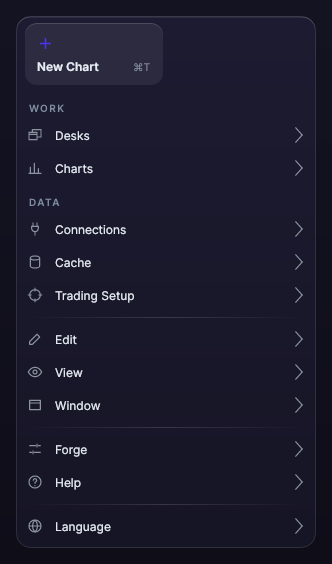
| Menu | What’s in it |
|---|---|
| Desks | Save Global Desk (⌘S), Global Desk…, Individual Desk…, Import Old Workspace (.forgews)… |
| Charts | New Chart (⌘T), 1 Pane, 2 Columns, 2 Rows, 4 Panes, New Forge Window (⌘N) |
| Connections | Connections Panel…, connect and disconnect the data source, External Data Sources… |
| Cache | This Chart’s Cache… |
| Trading Setup | Install EA on MT4/MT5 (see Trading) |
| Edit | Undo, Redo, Copy Selection, Paste, Select All, Delete Selection, Delete All |
| View | Chart Settings…, Time Frame and Loading…, Chart Objects…, Toolbars and Shortcuts… |
| Window | Minimize (⌘M), Full Screen (⌃⌘F) and the list of open windows |
| Forge | About Forge, Check for Updates…, Toolbars and Shortcuts… (⌘,), Forge Settings…, Chart Settings…, Quit Forge (⌘Q) |
| Help | Keyboard Shortcuts…, Data Status… |
On Windows, use Ctrl wherever it says ⌘.
Search or run (⌘K)
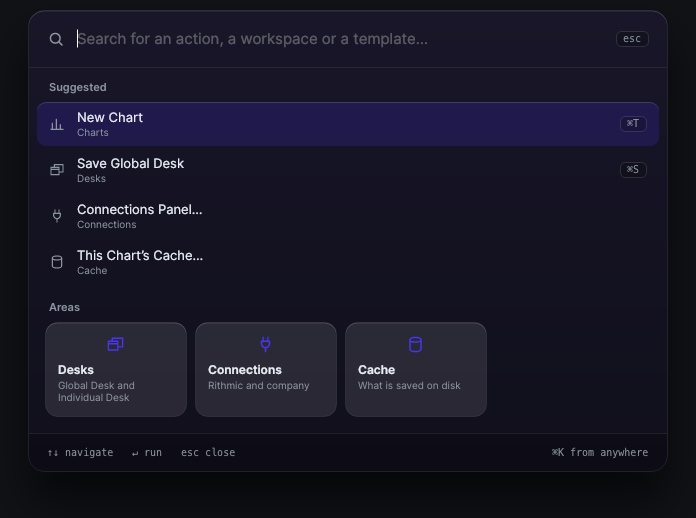
Press ⌘K (Ctrl+K on Windows) from anywhere and type what you want to do: it searches the whole menu. With nothing typed, it suggests New Chart, Save Global Desk, Connections Panel… and This Chart’s Cache…. Move with ↑ ↓, run with Enter and close with Esc.
The chart bar
Each chart has its own bar, from left to right:
| Button | What it does |
|---|---|
| Indicators ▾ (indicators) | Turn the chart’s indicators on and off, and configure them (see Indicators) |
| Footprint ▾ | Chart type: Candles, Footprint, Bars, Line or Hidden |
| Pointer (crosshair icon) | Pointer, Crosshair, Global Crosshair, Synced Crosshair, Zoom, Pan or Zoom XY |
| TF | Quick timeframe: from 1 minute to weekly |
| TF/Data | The Time Frame and Loading window: bar type and how many days to load |
| Connections | The connections panel |
| Instrument (for example MNQ) | Choose the instrument |
| Window | Open another Forge window |
| Trader | Show or hide the trading panel |
| Accounts · Positions · Orders · Journal | Their windows (see Trading and Journal) |
| Now | Goes back to the latest candle and resets the price scale |
| Replay | The replay panel |
| ETH · RTH | Full session or regular session only (ETH by default) |
If the window is narrow, whatever doesn’t fit moves to the » button at the end of the bar.
Close Forge
With Quit Forge (⌘Q), it asks whether to save the workspace: Quit and save, Quit without saving or Cancel. If you have several windows open, you can also Close this window on its own.
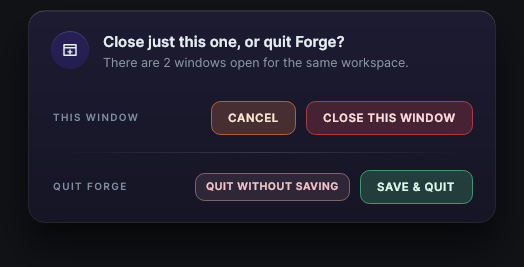
Forge saves a copy of your workspace every 2 minutes. If it closes abruptly, you get back what you had when you reopen it.