 FORGE
FORGETrading
Trade from the Trader panel or straight from the chart, with your account or in demo.
Before you trade with real money
- There is no confirmation window: orders, closes and stop changes go out immediately.
- CLOSE ALL closes that symbol on all your accounts unless you turn on Active account only (see below), and FLATTEN closes everything in Forge, always.
- Try it first on Demo (paper): it works the same and sends nothing to the market.
The Trader panel
The Trader button on the bar shows or hides it, to the right of the chart.
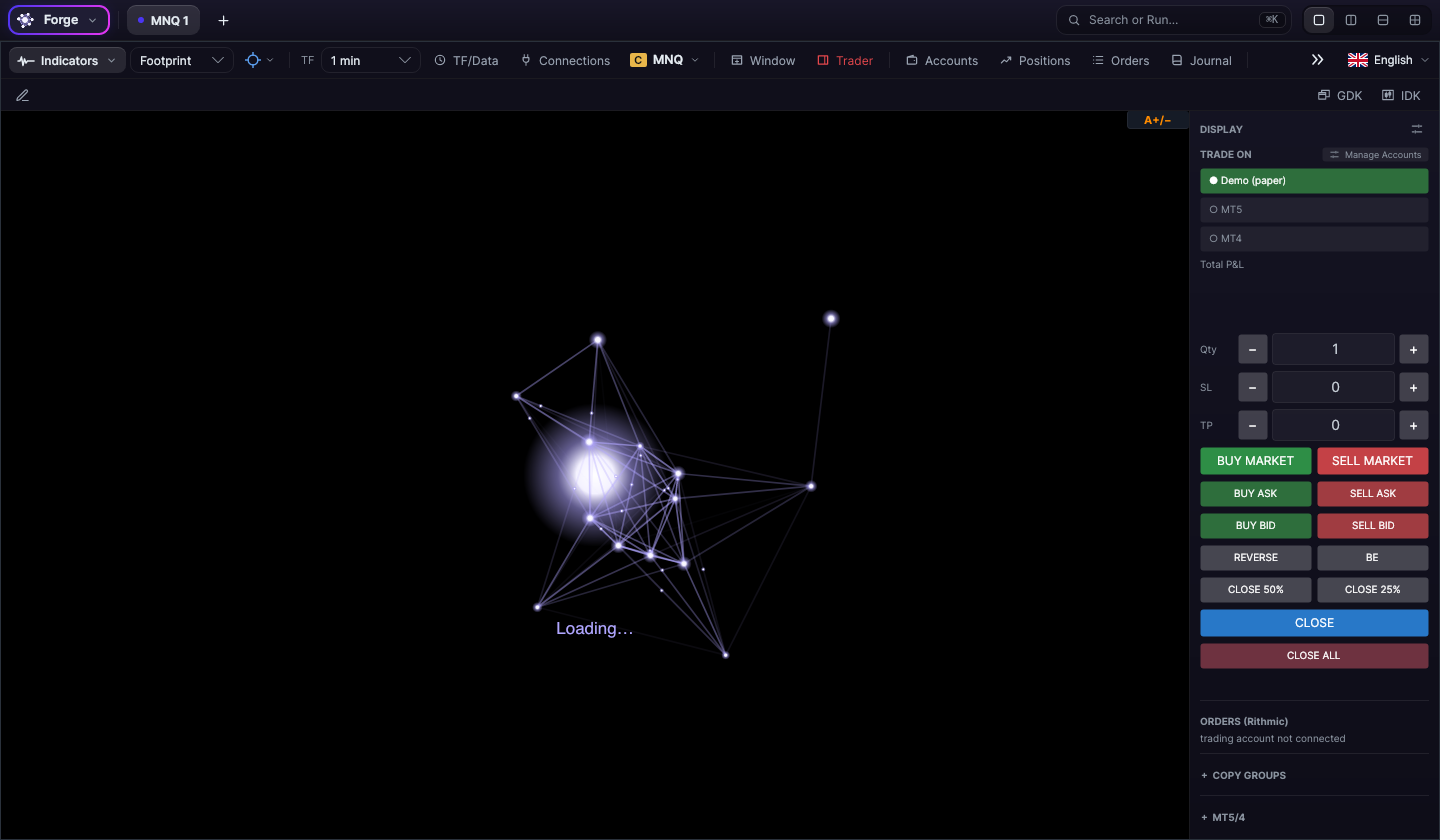
Where you trade: TRADE ON
Choose the account your orders go to: Demo (paper) (it is always there and selected by default), each Rithmic account you have connected for trading, MT5 and MT4. With Manage Accounts you choose which accounts appear in this list.
Quantity, stop and target
- Qty: contracts (1 by default). On CFDs, these are lots.
- SL and TP: distance of the stop and the target in points, in steps of 5. With 0, none is placed. They are sent together with the entry (see the bracket).
The buttons
| Button | What it does |
|---|---|
| BUY MARKET · SELL MARKET | Buys or sells at market, with the panel’s SL and TP |
| BUY ASK · SELL ASK · BUY BID · SELL BID | For now these also send at market, just like the ones above |
| REVERSE · BE | Flips the position · moves the stop to the entry. Demo and MT4/MT5 only |
| CLOSE 50% · CLOSE 25% | Closes that part of the position. Demo and MT4/MT5 only |
| CLOSE | Closes everything on that chart in the TRADE ON account: it cancels its orders for that symbol (the panel’s, a bracket’s and the ones placed by hand) and exits the position |
| CLOSE ALL | Closes that symbol on all accounts of all connected brokers (Demo, MT4/MT5 and futures accounts): its orders and its positions. It doesn’t touch other symbols. With “Active account only”, only on the TRADE ON one |
| FLATTEN | Closes everything in Forge: all accounts of all brokers and all symbols, orders and positions. It ignores “Active account only”. It’s the panic button; it doesn’t appear on the panel by default |
| OCO | Links the pending entry orders on that chart: the first one to fill cancels the rest (see OCO) |
Hover over a close button and Forge explains what it does. Below the buttons you’ll see the response: “✓ sent” or the reason if something couldn’t be sent.
Panel options
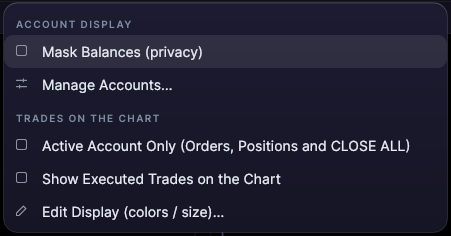
The ⚙ in DISPLAY opens the options:
- Active Account Only (Orders, Positions and CLOSE ALL): off by default. Turn it on if you use several accounts and you want CLOSE ALL to close only on the TRADE ON one.
- Mask Balances (privacy): hides the balances, for screen sharing.
- Show Executed Trades on the Chart.
- Manage Accounts…
- CLOSE BUTTONS: choose which ones appear on the panel. By default CLOSE and CLOSE ALL show; you add FLATTEN yourself.
Mini and micro
The MINI → MICRO switch (or the other way round) makes the buttons trade the sibling contract of the one you see: you watch NQ and trade MNQ. If you use it, keep in mind that BUY, SELL, CLOSE and CLOSE ALL go to that other contract.
The bracket: stop and target from the panel
If you enter the SL and the TP in the panel before buying or selling, the entry goes out with its stop and its target:
- When the entry fills, its exits show on the position: the green tag is the target (TP) and the red one is the stop (SL).
- You move them by dragging. Placing a stop by hand doesn’t create a second stop: it moves the one already there.
- When one of the two is hit, the other is cancelled automatically.
The position’s stop and target
- Each position has only one SL and one TP. Even if you ask for it twice in a row, a second one doesn’t appear.
- When the TP or the SL is hit, the other one is cancelled.
- If you close Forge with an open position, when you open it again its TP and SL come back with their prices.
- If you cancel them from another platform, Forge stops drawing them as placed.
- The TP and the SL show only on the position, not also as a separate pending order.
OCO: the first order to fill cancels the rest
The OCO button on the panel links the pending entry orders on that chart (that account and that symbol):
- When you turn it on, the ones you already have placed and the ones you place while it stays on are linked. The first one to fill cancels the rest.
- A position’s TP and SL are not part of the group.
- Each linked order carries OCO on its tag, and the button shows as on.
Depending on the account
- Futures accounts: the broker’s server manages it, so it keeps working even if you close Forge. If you add an order to a group that is already linked, Forge rebuilds the group: it places the orders again and links them all. When you turn OCO off, the linked orders that are still live are placed again as standalone orders, at the same price.
- Demo: Forge’s simulator handles it. When one order in the group fills, the rest are canceled at that same instant; if two are hit at the same time, only one fills. When you turn OCO off, they are unlinked without touching the orders.
- MT4/MT5: Forge watches over it, only while Forge is open. When a pending order in the group fills, Forge cancels the rest. If you cancel one by hand, it just leaves the group. A market buy or sell of your own doesn’t trigger anything. When you turn OCO off, they are unlinked without touching the orders.
On futures accounts, when Forge places an order again (when adding it to the group or when turning OCO off), that order loses its place in the queue at that price.
Trade from the chart
- Right-click on a price: buy or sell there (Buy/Sell at market, limit or stop, depending on where the price is), close the position and, if you have a position, put the stop or the target at that price.
- A limit entry carries the panel’s SL and TP. A stop entry goes out without a stop or target, and Forge tells you when you send it.
- Drag a pending order to move it, or the stop or target line to change it: it applies when you release.
- The × on an order cancels it; the one on a position closes it at market.
Accounts, orders and positions
- Accounts: balance, available funds, realized, open and daily P&L, and commissions for each connected account.
- Orders: the live orders (symbol, type, status, quantity and fill price).
- Positions: account, instrument, net, average price, P&L, stop and target, Demo included.
Orders and Positions always show all accounts, even if you have “Active Account Only” on.
The Demo account
Demo (paper) simulates trades at the live price, with their stops and targets, without sending anything to the market. It starts with a balance of 100,000. In the Accounts window, DEMO ACCOUNT block, you can change the size (25k, 50k, 100k or 250k, or whatever you type) and Reset account.
Resetting the Demo deletes its positions, its orders and also any trades it had marked, and there is no undo: that’s why it asks you to confirm twice. From there you can also create more named demo accounts, but for now you can only trade on “Demo (paper)”.
Your Rithmic accounts
In Manage Accounts, click + add Rithmic account and fill in the Connect to Rithmic window (gateway, system, user and password), as in the quick start guide. If you check Remember the password, it is stored in the system keychain.
- Each account has two switches: feed (market data comes from it; only one at a time) and trading (orders go out through it).
- Connect and Disconnect on each account. The ✕ removes it from the list (asks for confirmation); it doesn’t close it at the broker.
- In available accounts you see the sub-accounts with their balance and choose which ones appear in TRADE ON.
Rithmic allows only one session per user: if you have another platform connected with the same user, one will kick out the other.
MT4 and MT5
To trade at your MT4 or MT5 broker, Forge talks to an expert advisor that is installed in the terminal:
- In the menu, Trading Setup › Install EA on… and click Install OrderHelper for your terminal.
- In the terminal: Navigator › Expert Advisors › right-click › Refresh.
- Drag OrderHelper onto a chart and check Allow live trading.
- Turn on AutoTrading (or Algo Trading).
Choose MT5 or MT4 in TRADE ON and that’s it. If the expert advisor isn’t running or doesn’t respond, Forge tells you and sends nothing.
With MT4/MT5, “✓ sent” means the order was delivered to the terminal; the terminal executes it. The expert advisor doesn’t tell apart what you place from Forge and what you place by hand in the terminal. CLOSE cancels the pending orders for that symbol and closes its positions, including those opened by hand. CLOSE ALL does the same for that symbol in every connected terminal. FLATTEN cancels all pending orders and closes all positions in the terminal, for any symbol. If the expert advisor doesn’t respond, CLOSE tells you in the panel; CLOSE ALL and FLATTEN skip that terminal without warning and close in the others.
Copy groups
In the COPY GROUPS block of the panel you can set up groups of destination accounts with their multiplier. For now it doesn’t replicate orders: each order goes only to the TRADE ON account.