 FORGE
FORGEQuick install guide
From zero to your first chart, in six steps.
Before you start
- A Mac or a PC running 64-bit Windows 10 or 11. On Mac, both Apple chips (M1, M2…) and Intel work. The Linux version is coming soon.
- Your Rithmic data account, the one your broker or prop firm gives you. Forge does not include market data and, for now, Rithmic is the only compatible source. Just a heads-up: some prop firms only let you use their connection to see the market, not to trade from another platform. If you’re not sure, ask them whether they allow trading through Rithmic from third-party platforms.
Create your account
On forgecharts.net, click Create a free account, enter your email and accept the terms of use.
You will get an email, “Activate your Forge account”. Click the activation button and choose your password (at least 8 characters). The link expires after 15 minutes: if it does, just sign up again and you will get a new one.
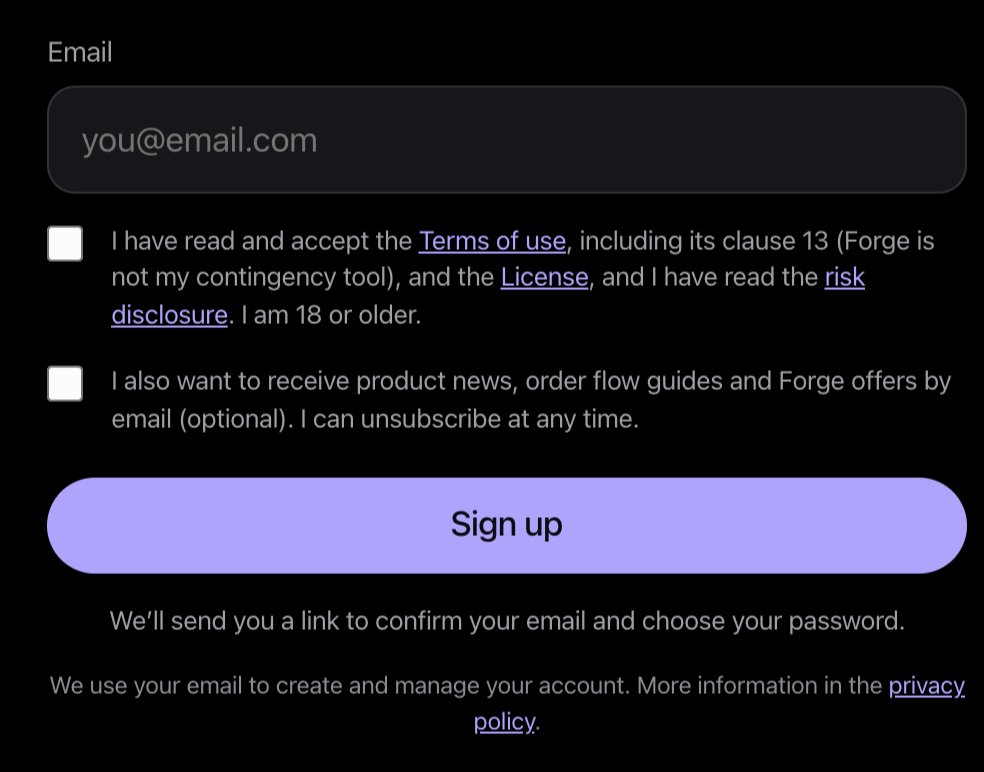
Sign-up, at the very bottom of the forgecharts.net home page. Wait for beta access
Forge is in beta and we review every request by hand. Once you are approved you will receive an email telling you that you have access to the Forge beta.
Download and install
Log in to your account with Log in (top right of the website), using your email and password, and download the installer for your system: Forge-win-Setup.exe on Windows, or the right macOS one (Apple Silicon if your Mac has an M chip, Intel otherwise; check Apple menu › About This Mac). Next to the download you will see its SHA-256 fingerprint, in case you want to check the file is ours.
On Windows there are no steps: open Forge-win-Setup.exe and within seconds it’s installed, with the Forge shortcut on your desktop, and Forge opens by itself. On Mac, the installer takes you through three screens (below). From then on, Forge updates itself.
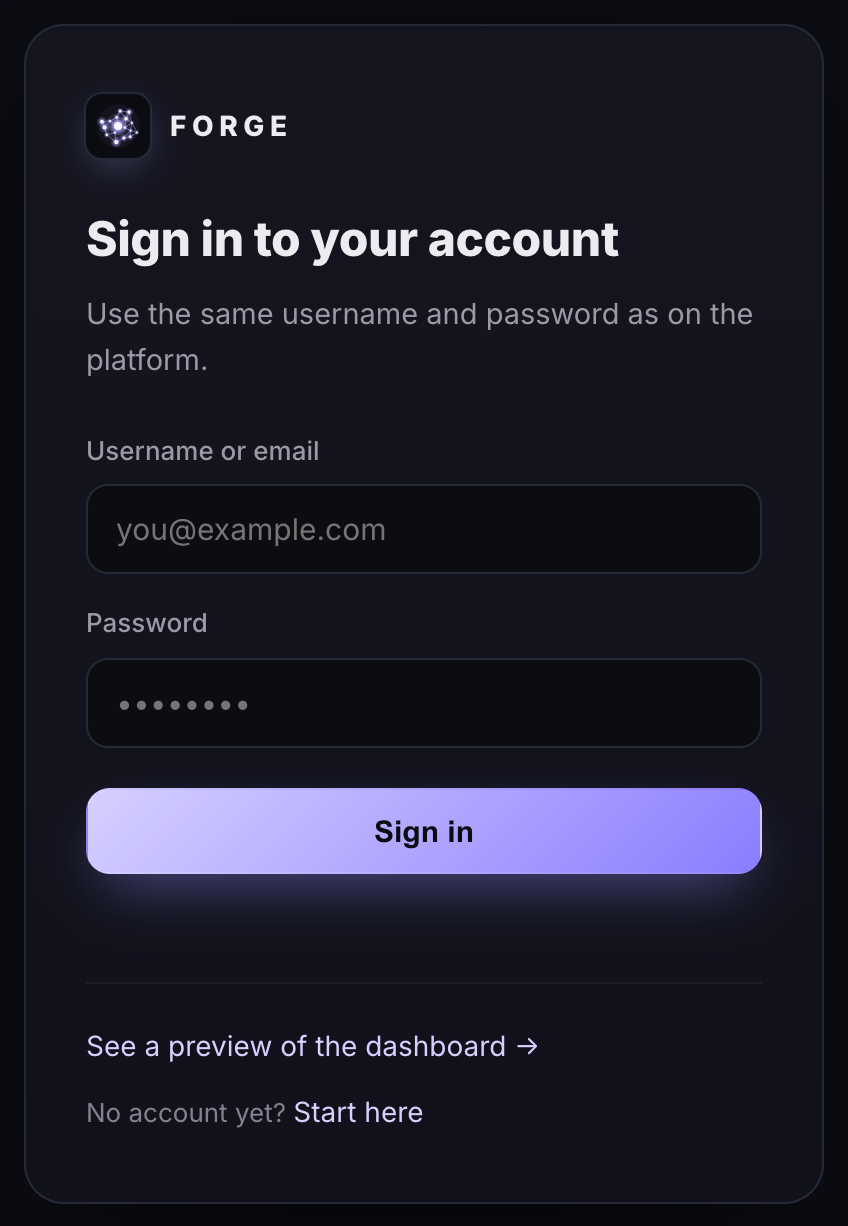
Sign in with the same email and password you’ll use in Forge. 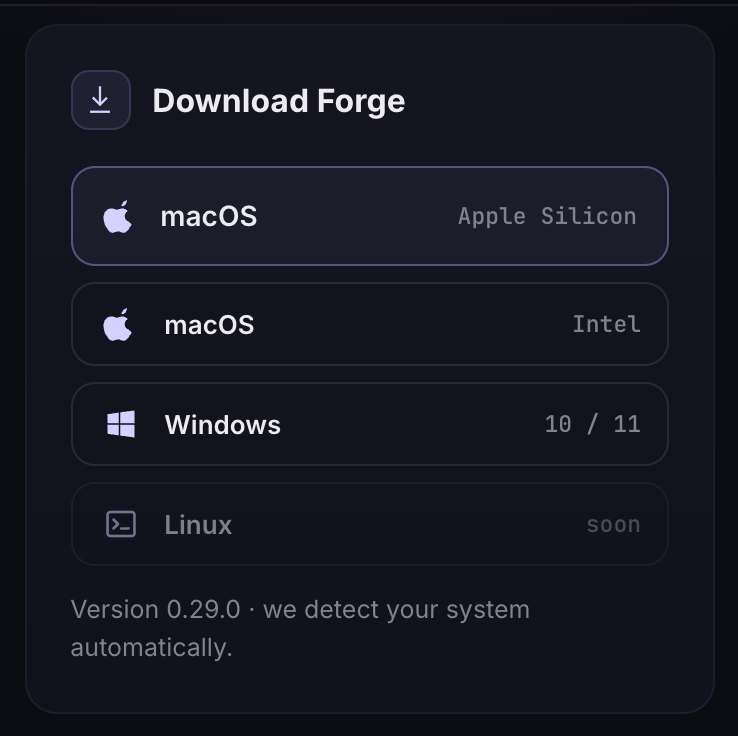
Your account detects your system and puts its installer first. 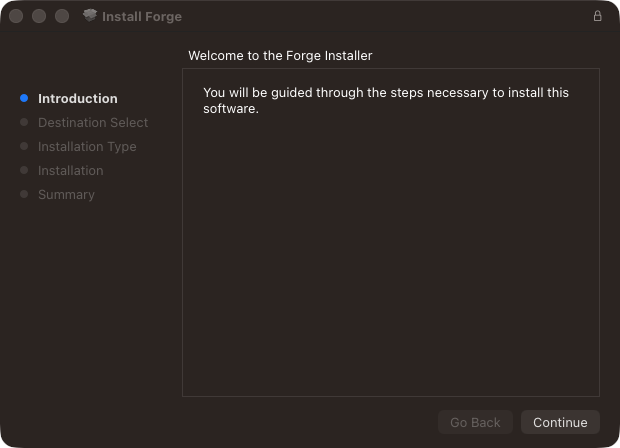
1 · Introduction: click Continue. 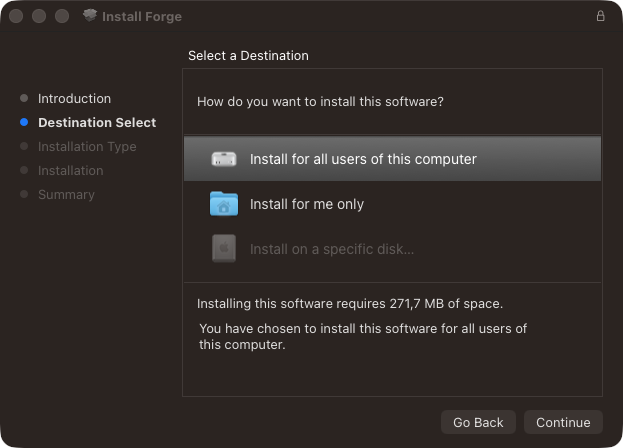
2 · Destination Select: click Continue. 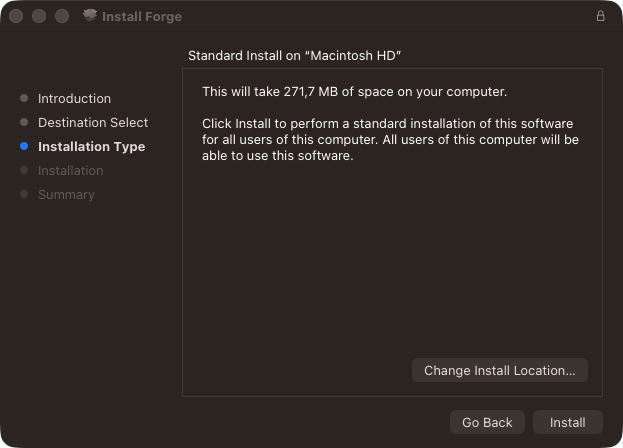
3 · Installation Type: click Install. macOS asks for your Mac’s password to finish. Log in to Forge
Open Forge. In the login window (Sign In) enter your email and password and click Sign In. If your account uses two-step verification, it will ask for the code from your app. Tick Remember username so you don’t have to type it every time.
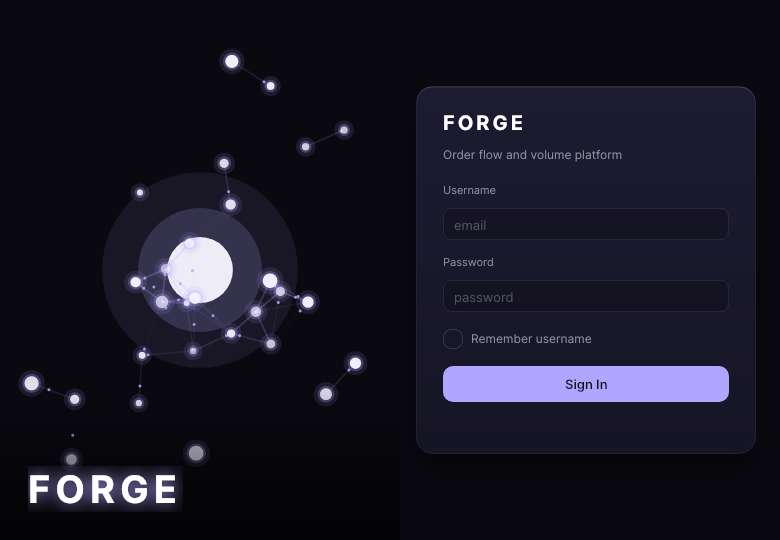
The first thing you see when you open Forge. Connect your data
Forge opens with a 1-minute MNQ chart and the trading panel open. In that panel, next to TRADE ON, click Manage Accounts and, in the window that opens, + add Rithmic account.
In Connect to Rithmic pick the gateway, enter your Rithmic username and password, click Check and Load Systems, choose your system (your broker’s or prop firm’s), click Test Connection and, if all is well, Save.
Rithmic allows a single data session per user: if another platform is connected with the same user, one will kick the other out.
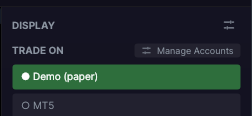
Manage Accounts, next to TRADE ON. 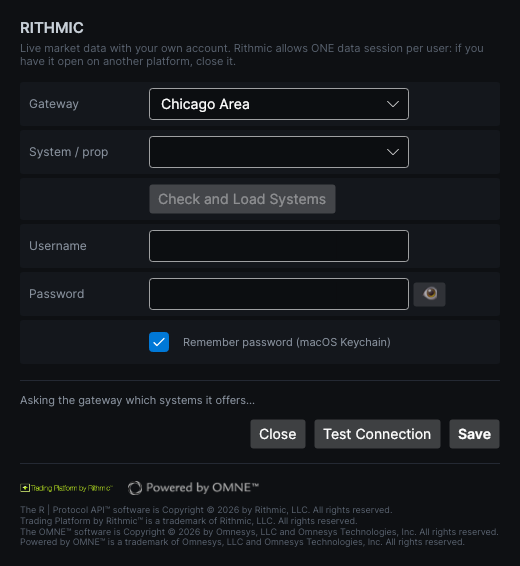
The Rithmic connection, before filling it in. Open your first chart
With your data connected, the chart downloads its history and, once complete, starts drawing live. While it loads you will see the Forge logo: that is normal and only takes time the first time, because the history is then stored on your computer.
From here you can switch instrument and timeframe and add indicators.
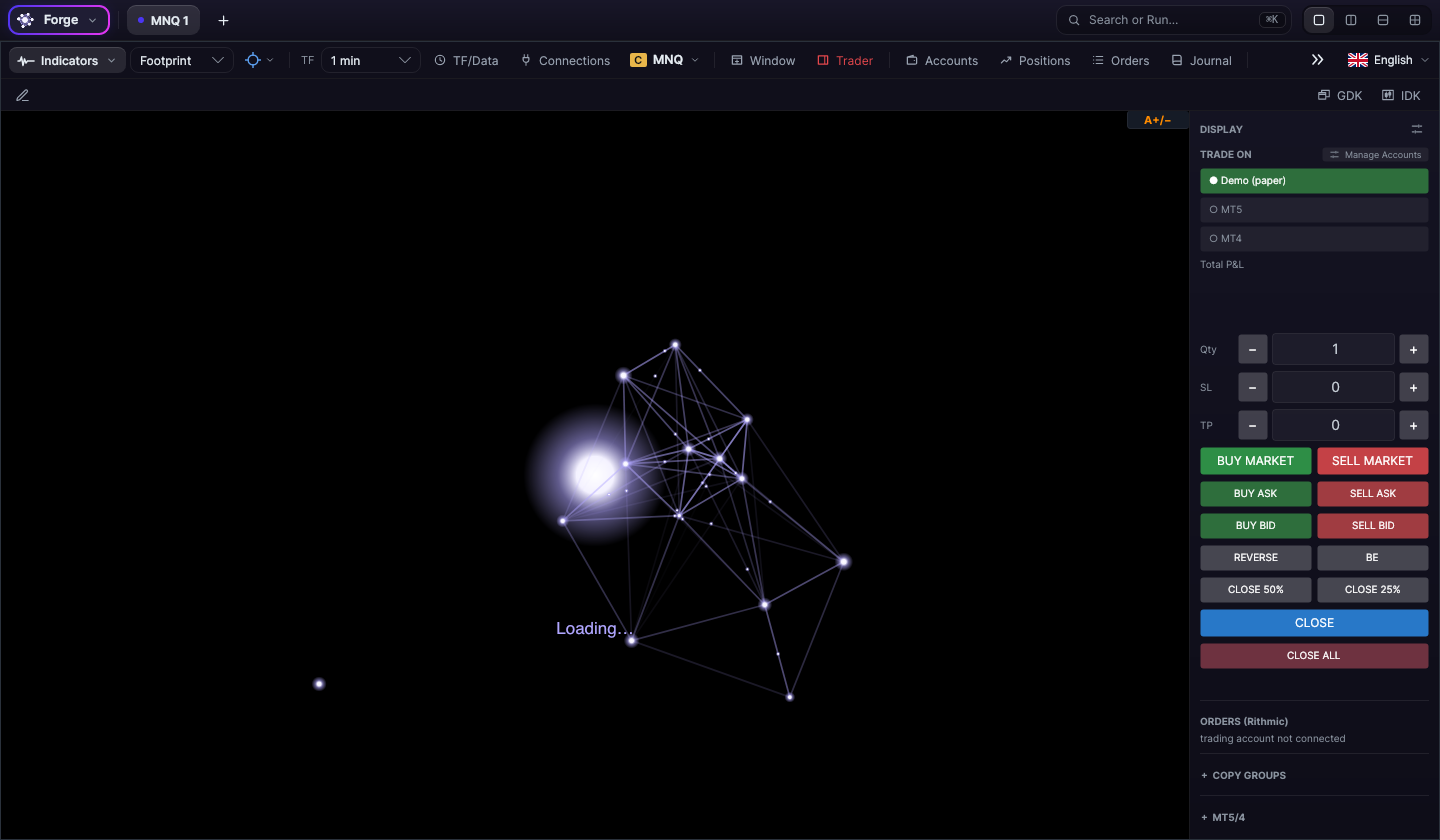
While it downloads the history, the chart shows the Forge logo.
Something not working?
Write to [email protected] or ask on our Discord.