 FORGE
FORGEThe chart
Move around the chart, adjust its scales and set it up your way.
Chart types
In the dropdown on the bar (Footprint by default): Candles, Footprint, Bars, Line or Hidden. The footprint shows, at each price of each candle, the volume traded on the buy side and the sell side.
Move around the chart
| I want to… | How |
|---|---|
| Zoom in or out | The mouse wheel, or ↑ / + and ↓ / − |
| Go back or forward | Drag inside the chart, or ← and → |
| Stretch time | Drag on the time strip, at the bottom |
| Stretch price | Drag on the price axis, on the right |
| Go back to the current price | The Now button |
| Measure | Hold the middle button and drag (or the R key) |
By default, the wheel does Zoom XY: it zooms time and resets price. You can change it to Zoom X (time only) or Scroll in Chart Settings › Visual Settings, option Mouse wheel behavior.
The price scale is automatic until you drag the chart; from then on you control it. With Now it becomes automatic again.
Pointer and crosshair
The crosshair button on the bar changes what the mouse does:
- Crosshair (default): lines that follow the mouse and snap to price.
- Global Crosshair: the cross is mirrored on the other charts in that window.
- Synced Crosshair: the cross is mirrored in all Forge windows.
- Pointer: no crosshair.
- Zoom: drag a rectangle to zoom into that area; Zoom XY zooms time and price at once.
- Pan: dragging always moves the chart.
The right-click
On the chart you have the orders at that price (see Trading) and also:
- Duplicate chart.
- Global Desk… and Individual Desk… (see Workspaces).
- Chart Settings….
- Re-load his data: requests the chart’s history again.
- Refresh deck: redraws what’s already there, without requesting anything.
Chart settings
Open them with Chart Settings… in the right-click, with the ⚙ in the Indicators menu, or in View › Chart Settings…. At the top there is a search box (Search) to jump straight to an option.
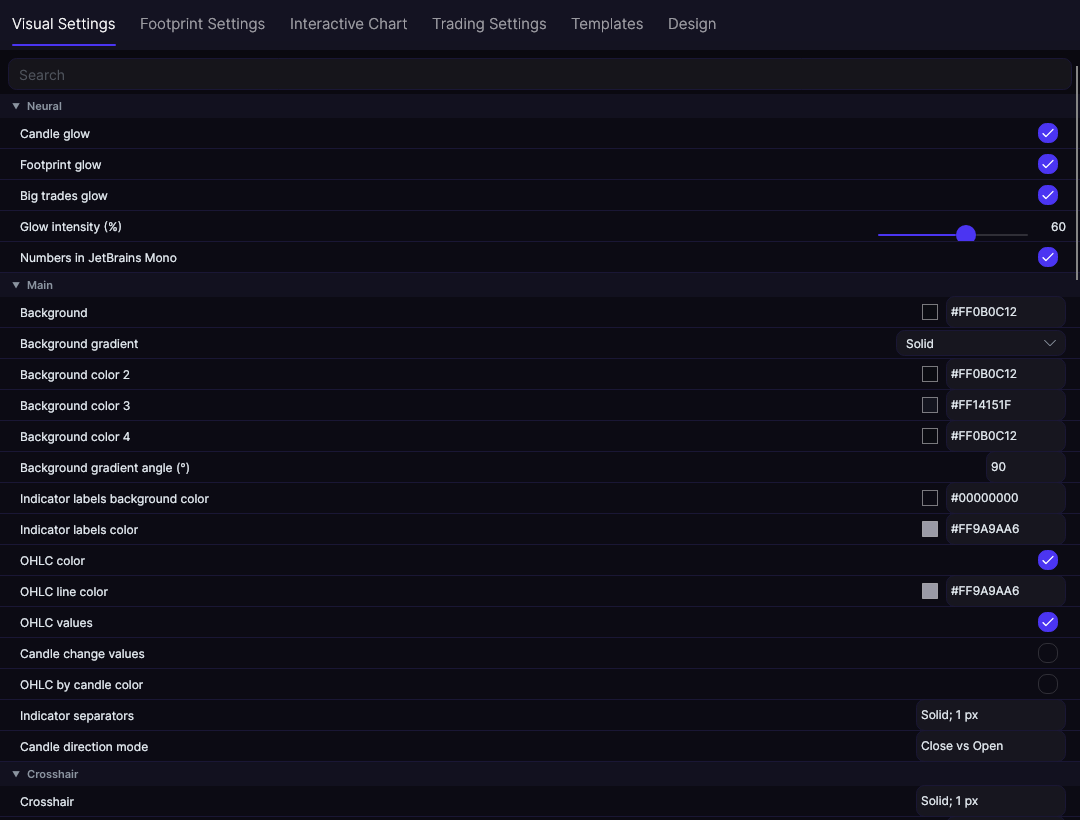
| Tab | What it adjusts |
|---|---|
| Visual Settings | The Neural section (the glow of the candles, the footprint and the big trades, its intensity and the numbers in JetBrains Mono), background, candles, crosshair, current price line, grid, axes, session, volume, and the color and thickness drawings start with |
| Footprint Settings | What each cell shows (Neural by default), the heat map, the text, the maximum value, the value area, the imbalances and the outline |
| Interactive Chart | How to highlight trapped volume and big trades, their blinking and their sound, with a live preview |
| Trading Settings | How many days before expiry it switches to the next contract (8 by default) and what you see of your trades on the chart |
| Templates | Save the chart’s look under a name and load it on another chart. The Neural template is the factory one, and Restore factory settings goes back to it |
| Design | Dark or light base, hue, saturation and opacity of the menus |
The Neural theme
It’s Forge’s factory look: background #0B0C12, rises in ice (#7DF9FF), falls in pink (#FF4F9A) and the brand violet (#B0A6FF) on the POC and the levels. The candles, the footprint cells and the big trades carry an LED glow in each one’s color, and the axis and cell numbers are set in JetBrains Mono.
- Everything is adjusted in Chart Settings › Visual Settings › Neural: the glow of each layer separately, its Glow intensity (%) (60% by default) and the numbers.
- Each indicator has its own Neural section in its panel, with Glow (Neural theme) and its intensity. A newly added indicator comes with the glow checked.
- Charts you had already saved stay as they were. To switch one to the theme, load the Neural template or press Restore factory settings: it changes the colors, the candles, the footprint and the big trades, and leaves the contract, the session and the chart type alone.
The bottom panel
Below the candles are the strips of the panel indicators: volume, delta, cumulative delta… You turn them on from Indicators and handle them like this:
- Double-click a strip: opens its settings.
- Drag the separator line: makes it taller or shorter.
- Right-click: Move up, Move down, frame and numbering of the strips, frame thickness and color, and its own background.
What … if ?
An indicator for trying out trades on the chart without risking anything. Turn it on in Indicators and then: hold Shift, click on the entry, drag and release on the exit. Forge marks the trade with its result and logs it in a separate practice account, which you can see in the Journal. When you release, its card opens, so you can note the setup while it’s fresh; double-click a marked trade to open it again, and from there you can also delete it. Esc drops the entry.