 FORGE
FORGEWorkspaces
Save your whole desk, or just the way you like one chart, and come back to it with one click.
Two levels: Global and Individual
| Global Desk (GDK) | Individual Desk (IDK) | |
|---|---|---|
| What it is | Your whole desk | What a chart looks like |
| What it saves | The windows, which monitor they’re on and their size, how the panes are laid out and, in each pane, which instrument it has and which Individual Desk it uses | The timeframe and days, the theme, the indicators with their settings, the bottom strips, the view and that chart’s drawings |
| Button | GDK (on the right, under the chart bar) | IDK, next to it |
The Individual Desk doesn’t carry an instrument: it is the shape of a chart. That way you can use the same “1-minute footprint with my indicators” on NQ, ES or gold.
These go with the instrument, not with the desk: the contract and its expiry, the price scale you set by hand, and global drawings.
Save and open
Click GDK or IDK (or the Desks menu) to open its manager. Buttons: Load, Save, Save as…, Import…, Export…, Rename… and Delete. The Individual Desk also has Load on this chart.
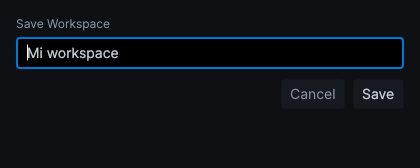
- Save Global Desk has a shortcut: ⌘S.
- If you’re about to open another desk with unsaved changes, it offers Save as… and open, Open without saving or Cancel.
- If other desks use what you’re saving, you choose: Save for all, or save it only here (Only in this Global Desk, or Save under another name… on the Individual one).
- Deleting a Global Desk doesn’t delete the Individual Desks it uses.
- If, when you open a Global Desk, one of its Individual Desks is missing, that pane opens with the default settings and tells you.
You can also reach both from the right-click on the chart: Global Desk… and Individual Desk… And with Duplicate chart you get an exact copy of the chart.
Old workspaces
If you had workspaces from earlier versions (.forgews files), bring them in with Desks › Import Old Workspace (.forgews)….