 FORGE
FORGEDrawings and price alerts
Draw, mark, measure and annotate on the chart, and let Forge tell you when price gets there.
The drawing bar
Open it with the pencil on the second row, on the left, under the chart bar. It has four groups of tools and, on the right, the controls that affect all drawings.

- Continuous drawing: the tool stays active after you finish a drawing, so you can make several in a row.
- Magnet: snaps the price to the nearest tick while you place the drawing.
- Chart Objects: the list of everything drawn (see below).
- Actions: undo, copy, lock, hide and delete.
Right-click a tool to mark it as a favorite. By default, the favorites are the horizontal line and the horizontal ray.
The tools
| Tool | How to draw it | Shortcut |
|---|---|---|
| Draw | ||
| Trend line | 2 clicks | F2 |
| Line horizontal (horizontal line) | 1 click | F6 |
| Horizontal ray | 1 click (it goes to the right) | — |
| Line vertical (vertical line) | 1 click | F7 |
| Fixed cross | 1 click | — |
| Trend angle | 2 clicks (shows the degrees) | — |
| Line style freehand | drag; it closes when you release | — |
| Rectangle | 2 clicks | C |
| Ellipse | 2 clicks | — |
| Triangle | 3 clicks | F11 |
| Channel | 3 clicks | — |
| Strip horizontal (horizontal band) · Strip vertical (vertical band) | 2 clicks | — |
| Mark | ||
| Dot · Diamond · Square | 1 click | Ctrl+Shift+N · Q · E |
| Up arrow · Down arrow | 1 click | Ctrl+Shift+W · S |
| Measure | ||
| Ruler | 2 clicks | R |
| Measure area | 2 clicks | — |
| Fibonacci retracements | 2 clicks | F8 |
| Fibonacci Fibonacci extensions · Fibonacci fan | 2 clicks | — |
| Annotate | ||
| Text | 1 click | Ctrl+Shift+T |
| Boxed label | 1 click | Ctrl+Shift+L |
| Sticky note · Speech bubble | 1 click | — |
| Price on the right · Price on the left | 1 click | Ctrl+Shift+D · A |
While you place a drawing, a right-click cancels it and Escape releases the tool. You change the tool shortcuts in Forge › Toolbars and Shortcuts… (⌘,): each row has Change and Remove.
Fibonacci retracements come with levels 0, 0.236, 0.382, 0.5, 0.618, 0.786 and 1 on. The extension levels (1.272, 1.618, 2.618, 3.618 and 4.236) are off, and you turn them on in the drawing’s properties.
Edit a drawing
Double-click the drawing, or right-click › Properties…, to open its properties window.
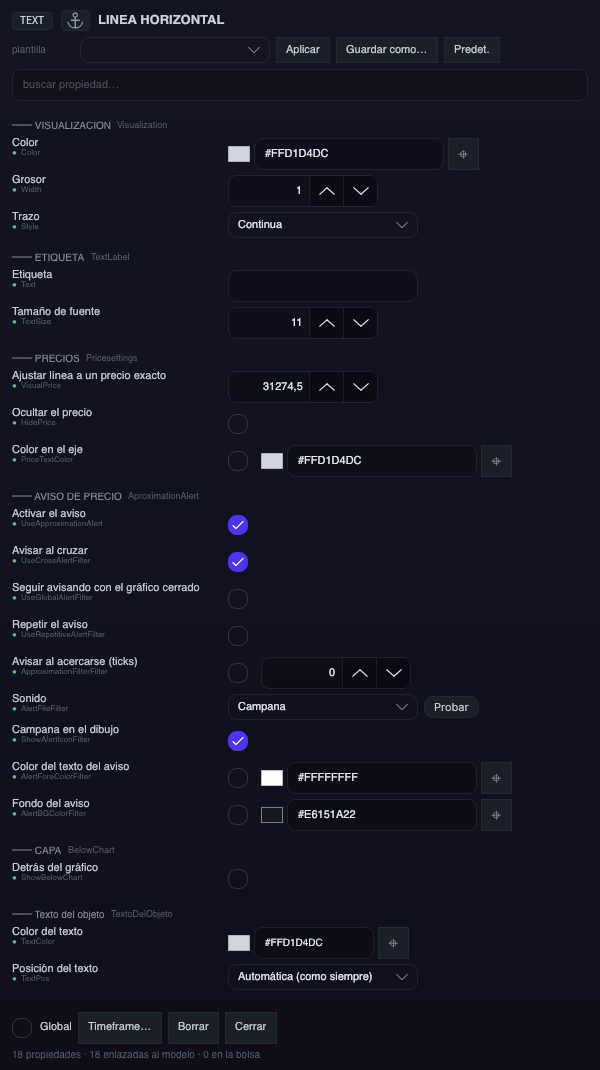
- Line style: Solid, Dashed, Dotted or Dash-dot.
- Set line to an exact price: type the price and the line goes right there.
- Extension of the trend line: Segment, Ray (to the edge) or Line (edge to edge).
- Boxed labels: twelve styles (Text, Frame, Pill, Accent, Outline, Underline, Speech bubble, Flag and four colored sticky notes) and nine text positions around the drawing.
- Behind the chart: draws the drawing underneath the candles.
- At the top there is a property search, so you don’t have to scroll the whole list.
Templates
On the template row: Save as… saves the drawing’s look under a name, Apply puts it on another drawing of the same type, and Default makes it the look that the next ones will start with.
Which timeframes show it
The Timeframe… button decides on which timeframes the drawing appears. By default Visible on all timeframes is on. If you turn it off, you choose by unit (minutes, hours, days, weeks, months, tick, range, volume, delta, renko or reversal) the exact values, separated by commas.
Global drawings
Check the Global box, at the bottom of its properties, and the drawing shows on every chart of the same instrument: draw a level on the 5-minute chart and it also appears on the 1-minute chart. If you uncheck it, it stays only on the chart where you made it.
Select, copy, lock and delete
| Action | Shortcut |
|---|---|
| Undo · Redo | ⌘Z · ⇧⌘Z |
| Select all | ⌘A |
| Copy selection · Copy all · Paste | ⌘C · ⇧⌘C · ⌘V |
| Delete selection · Delete all | ⌫ · ⇧⌘⌫ |
| Lock all · Hide all | ⌘L · ⌘H |
On Windows, use Ctrl wherever it says ⌘. Right-clicking a drawing also gives you Lock, Hide, Duplicate, Copy and Delete. You can undo up to 100 steps.
The Chart Objects list shows everything drawn, separating global drawings from those that exist only on that chart, with how many are selected.
Price alerts
These support an alert: the horizontal line, the horizontal ray, the trend line, the rectangle and the ellipse. You set it up in the Price alert block of their properties:
- Enable the alert, off by default.
- Alert on cross: fires when price crosses the line. It is on by default.
- Alert on approach (ticks): fires when price gets within that distance of the line.
- On the rectangle, the alert fires when price enters it.
- Repeat the alert: without this box it alerts only once; with it, it alerts again every time the condition is met, with a minimum of 2 seconds between alerts from the same drawing.
- Keep alerting with the chart closed: the alert keeps watching even if you close that chart, as long as Forge is open.
- Sound: Bell (the default), Drop, Pop, Marimba or No sound. The Test button plays it.
- Bell on the drawing: an icon that reminds you which drawings have an alert.
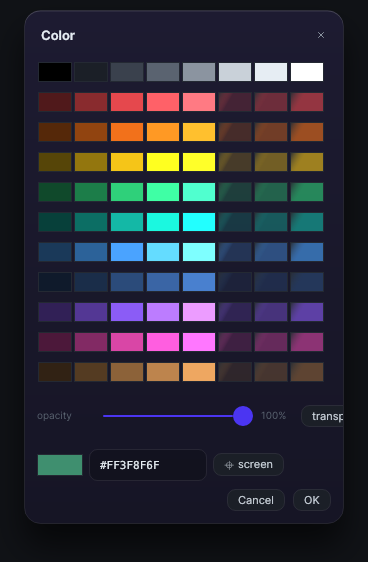
- Alert text color and Alert background, for the banner.
When it fires
The sound plays and a banner appears at the top with the instrument, the price, the time and what happened: “Crosses the line at…”, “Approaches the line…” or “Enters the rectangle…”. The banner lasts 12 seconds; if you hover over it, it stays. Up to five fit at once.
If the same drawing fires again while its banner is still on screen, another one isn’t stacked: the banner counts the times (×2, ×3…) and shows the new time.
An alert you set while price is already on the line doesn’t fire right away: it waits for a real cross. If it doesn’t have “Repeat”, it arms itself again as soon as you move the drawing or change its conditions.
The ruler
Press R (or choose Ruler in the Measure group) and mark two points. It shows the distance in ticks, the money it represents, the percentage and the time, in green if it goes up and in red if it goes down. You adjust its look in RULER — ruler settings, from the header of the Measure group, and changes apply immediately to rulers you have already drawn.