 FORGE
FORGEInstruments and timeframes
Choose which instrument you see, with which bar type and how much history.
Choose an instrument
Click the instrument name on the chart bar (for example MNQ) to open Instruments.
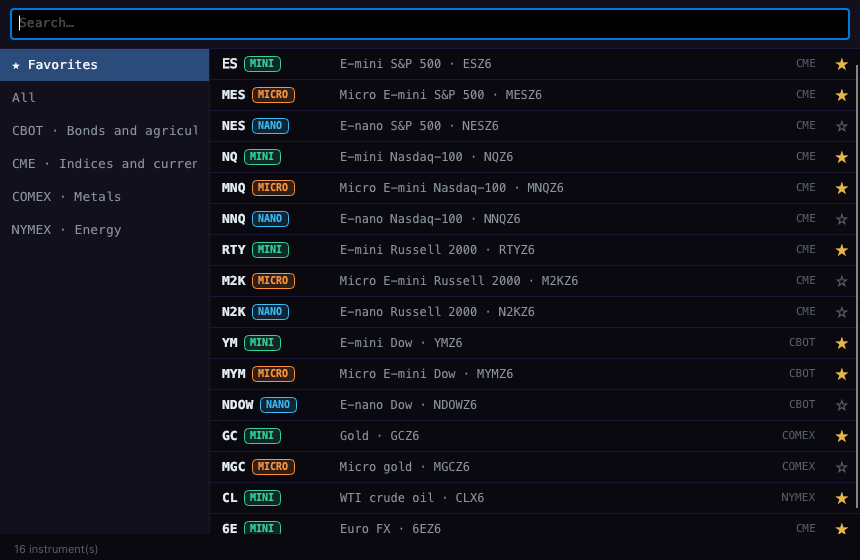
- On the left: ★ Favorites, All and the market groups (indices and currencies, bonds and agriculturals, energy, metals…).
- At the top, Search…: type the symbol or the name. Exact matches come first.
- Click a row to pick it, or its ★ to add it to or remove it from favorites.
- Next to the symbol you’ll see its size: MINI (green), MICRO (orange) or NANO (light blue).
- Esc closes the window.
Default favorites: ES, NQ, MNQ, MES, CL, GC, 6E, RTY, YM and MYM.
Quick timeframe
The TF dropdown on the bar changes the timeframe instantly: 1, 2, 3, 5, 10, 15 and 30 minutes, 1 hour, 4 hours, daily and weekly.
Time Frame and Loading
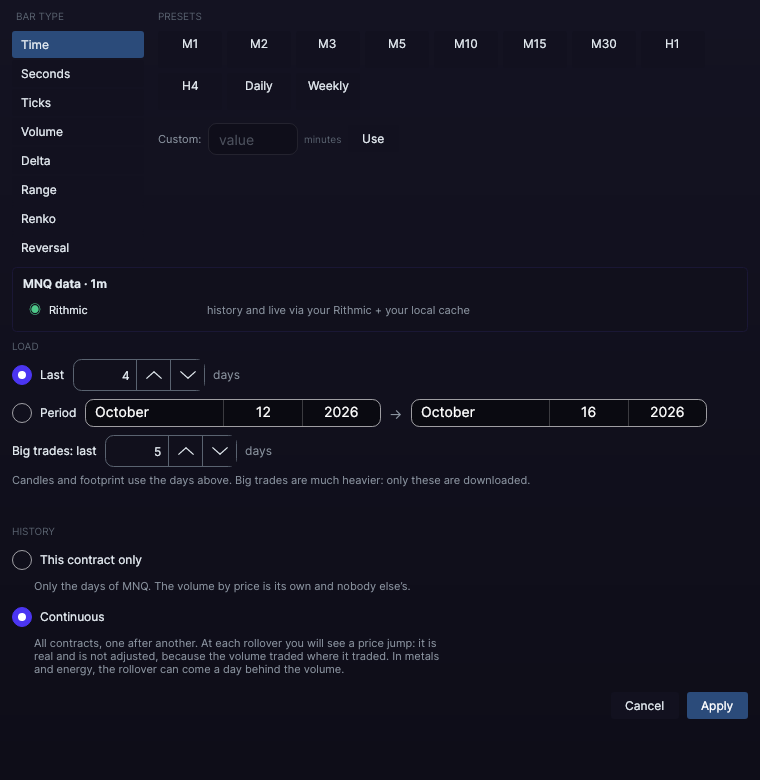
For the other bar types, click TF/Data (or View › Time Frame and Loading…).
| Bar type | Quick values |
|---|---|
| Time | M1, M2, M3, M5, M10, M15, M30, H1, H4, daily and weekly |
| Seconds | 1 to 45 seconds |
| Ticks | 1, 50, 144, 500, 1000, 1500 and 2500 |
| Volume | 1000 to 15000 contracts |
| Delta | 500, 1000 and 1500 |
| Range | 4, 6, 8, 12 and 16 |
| Renko | 2, 4, 6 and 8 |
| Reversal | with its range and its reversal |
If none of them works for you, type your own in Custom and click Use.
How much to load
- Last N days (4 by default) or a Period between two dates.
- Big trades: last N days (5 by default). Candles and footprint use the days above; big trades weigh much more, so they are limited separately.
- If you ask for more days than exist, it tells you how many there really are.
Continuous history or this contract only
- Solid (default): all contracts one after another. At each contract change you’ll see a price jump: it is real and isn’t corrected, because the volume traded where it traded.
- This contract only: only the days of that expiry.
Click Apply (or Enter) to load. While it loads, the chart shows the Forge logo (see Data and history).
Session and expiry
- ETH · RTH, on the bar: full session (default) or regular only.
- The switch to the next expiry happens automatically, 8 days before expiry by default. You change it in Chart Settings › Trading Settings.