 FORGE
FORGEData and history
Where the chart’s data comes from, how it loads and where it is stored.
The data source
Forge doesn’t include market data: it uses your own Rithmic account, from your broker or your prop firm (see the quick start guide). You manage connections with the Connections button on the bar or in the Connections menu.
Just a heads-up: some prop firms only let you use their connection to see the market, not to trade from another platform. If you’re not sure, ask them whether they allow trading through Rithmic from third-party platforms.
How a chart loads
Every time you open a chart, or change instrument or timeframe, Forge always follows the same order: it requests the history, downloads it, saves it on your computer and only then draws the chart. After that it hooks up the live feed, without counting any trade twice.
Meanwhile you’ll see the Forge logo covering the chart, with what it is doing (downloading, building, assembling the chart). This is on purpose: that way you never see a half-built chart that looks good and isn’t. While the logo is up, the mouse doesn’t move the chart.
The first load of an instrument is the slow one: afterwards the history is already on your computer and only what’s missing is requested.
How many days
You choose it in TF/Data (see Instruments and timeframes): the last N days or a period, the big trades days separately, and whether the history is continuous or only for that contract.
A chart’s cache
In Cache › This Chart’s Cache… you see what Forge has stored for that instrument and timeframe:
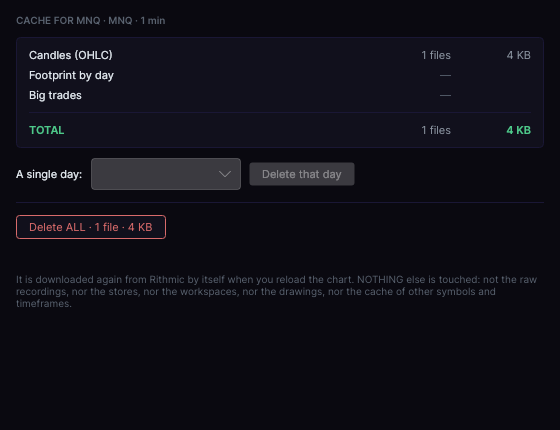
- The rows Candles (OHLC), Footprint by day and Big trades, with the total.
- Delete that day (choosing a single day) or Delete ALL. What you delete is downloaded again the next time you load the chart, and it doesn’t touch other instruments.
If you see something odd on a chart, first try right-click › Re-load his data, which requests its history again.
Where it is stored
Everything goes in your data folder (Documentos/Forge by default), which you can change in Forge settings.