 FORGE
FORGESettings and shortcuts
Set Forge up your way and work from the keyboard.
Forge settings
In Forge › Forge Settings… you’ll find the data folder, where Forge stores your workspaces, drawings, Journal and history. By default it is Documentos/Forge.
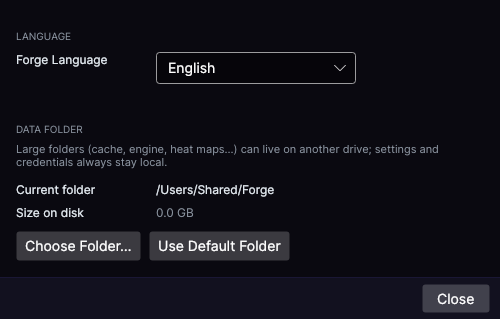
- Choose Folder… changes it; it asks whether to move the data now (Move Now, move now) or leave it where it is.
- Use Default Folder restores the default folder.
- The change applies when you restart Forge.
In Numbers you choose how figures are written in Forge: By language (the default), 1.234,56, 1,234.56 or 1 234,56. Dates follow the language. The change applies the next time you start Forge.
Design
In Chart Settings › Design: Dark Base (default) or Light Base, the hue and saturation of the interface color (Forge violet by default) and the opacity of the menus.
Keyboard shortcuts
| Action | Shortcut |
|---|---|
| Forge | |
| Search or run | ⌘K |
| New chart · New window | ⌘T · ⌘N |
| Save Global Desk | ⌘S |
| Bars and shortcuts | ⌘, |
| Minimize · Full screen · Quit | ⌘M · ⌃⌘F · ⌘Q |
| Chart | |
| Move one candle back · forward | ← · → |
| Zoom in · zoom out | ↑ or + · ↓ or − |
| Volume profile (with the indicator on) | hold V and drag · Tab changes the type |
| Grayskull (Pro plan indicator, turned on) | hold X and drag |
| Drawings | |
| Trend line · horizontal · vertical | F2 · F6 · F7 |
| Fibonacci · Triangle · Rectangle · Ruler | F8 · F11 · C · R |
| Marks (dot, diamond, square, arrows) | Ctrl+Shift+N · Q · E · W · S |
| Text · Label · Price on the right · on the left | Ctrl+Shift+T · L · D · A |
| Undo · Redo | ⌘Z · ⇧⌘Z |
| Select all · Copy · Copy all · Paste | ⌘A · ⌘C · ⇧⌘C · ⌘V |
| Delete selection · Delete all | ⌫ · ⇧⌘⌫ |
| Lock all · Hide all | ⌘L · ⌘H |
| Release the tool | Esc |
On Windows, use Ctrl wherever it says ⌘. Single letters (C, R…) don’t work while you’re typing in a text field.
Change a shortcut
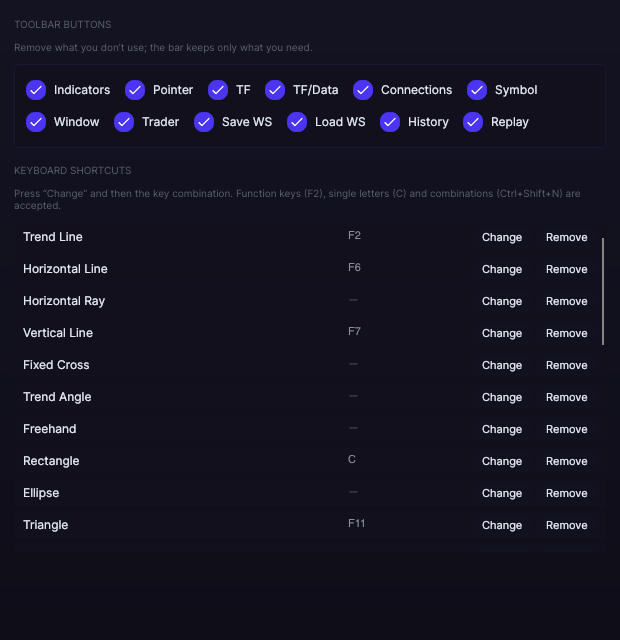
In Forge › Toolbars and Shortcuts… (⌘,), click Change on the row and type the new combination (Esc cancels), or Remove to leave it without a shortcut. If another action already used that combination, it is taken away from the other one and you get a notice.
Updates
- When it opens, Forge checks whether there is a new version. If there is, it shows you a notice with Update….
- You can also check by hand in Forge › Check for Updates….
- When you click Install, Forge closes and reopens by itself with the new version. With Skip you stay on the one you have.