 FORGE
FORGETime Bar
A countdown to the current candle’s close, in the corner of the chart you choose.
What it measures
Time Bar shows how long is left until the candle you’re in closes, according to the chart’s time frame. It doesn’t draw a line or a series: it’s a fixed clock on the screen, updated every second even if the market is idle.
Choose between five clocks: Airport (each digit on a tile that flips, like a departures board), Alarm clock (seven-segment digits), Hand (a dial whose full turn is the candle), Stopwatch (a ring that empties) and Digits (the plain countdown, in a pill).
How it’s calculated
Time left = close time of the current candle − current time
- The countdown is written m:ss below one hour, h:mm:ss up to 99 hours and d hh:mm above that. It never drops below 0.
- The time frame appears with a short label: 30s, 5m, 1h, 1D, 1W. If it isn’t time-based, its name is shown.
- With the candle already closed and waiting for the next one, the countdown stays fixed at 0:00.
- The Hand and the Stopwatch also use how long the candle lasts: their ring or colored sector is what remains of it, from the full turn (freshly opened candle) to zero (close).
How to read it
- The countdown: the time left until the candle’s close is fixed. Until it closes, its close, its high and its low can still change.
- The alert: in the last seconds (10 by default) the digits and the accent switch to the alert color and blink. It isn’t a price signal, only a clock one.
- Time frames that aren’t time-based: if the candle doesn’t close by time, there is no countdown. The clock appears dimmed with —:—, or is hidden if you ask.
Adding it to the chart
In the chart bar, Indicators ▾ › More Indicators…. You’ll find it in the Other category. It’s drawn on top of the chart, in a corner, in the center or next to the last candle, and takes up no strip or scale. How to add and adjust an indicator is in Indicators.
Settings
Open them with the ⚙ on its row in Indicators ▾. Each section collapses and expands on its own.
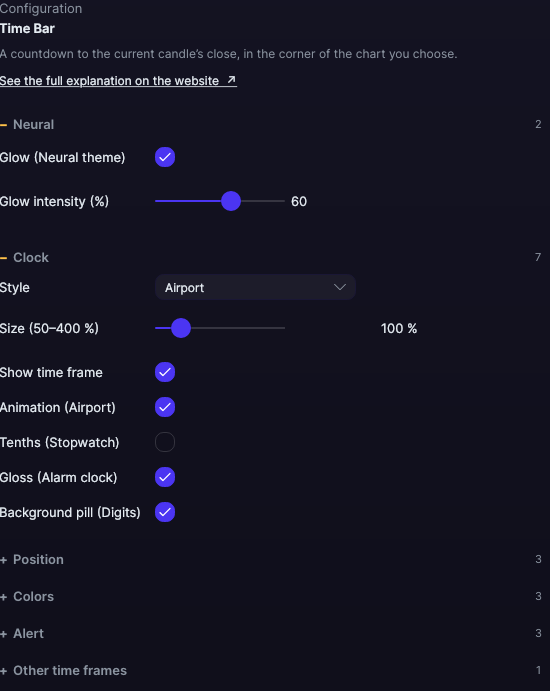
| Setting | Default | What it does |
|---|---|---|
| Clock | ||
| Style | Airport | Airport, Alarm clock, Hand, Stopwatch or Digits. |
| Size (50–400 %) | 100 | The clock’s scale, from 50 to 400 %. |
| Show time frame | Yes | Shows the time frame label next to the countdown. |
| Animation (Airport) | Yes | The tile flips when each digit changes. Only in the Airport style. |
| Tenths (Stopwatch) | No | Adds tenths of a second. Only in the Stopwatch style. |
| Gloss (Alarm clock) | Yes | The lit segments glow like an LED. Only with a dark background and in the Alarm clock style. |
| Background pill (Digits) | Yes | Puts the countdown on a pill; without it, the digits carry a shadow so they read over the candles. Only in the Digits style. |
| Position | ||
| Position | Top right | Top left, Top, Top right, Left, Center, Right, Bottom left, Bottom, Bottom right or Last candle. With Last candle, the clock is centered on the current candle’s close. |
| Margin X · Margin Y | 12 · 10 px | The distance from the edge, from −1,000 to 1,000 px. With the anchor in the center, a negative margin moves the clock to the left or upward. With Last candle, the Y margin isn’t used. |
| Colors | ||
| Main color · Background color · Accent color | Near white · Translucent dark blue · Violet | The digits, the panel and the clock’s detail (the ring or sector of the Hand and the Stopwatch). |
| Alert | ||
| Alert: seconds | 10 | How many seconds before the close the alert starts. From 0 to 3,600; with 0 there is no alert. |
| Alert: color | Reddish orange | The color of the digits and the accent during the alert. |
| Alert: blinking | Yes | The digits blink during the alert. |
| Other time frames | ||
| Hide if it is not time-based | No | If the time frame isn’t time-based, it draws nothing instead of the dimmed clock. |
| Neural | ||
| Glow (Neural theme) | Yes, when added | A halo of light in the color of each line or mark, like the one on the Neural theme candles. A newly added indicator comes with it checked; the ones you already had saved don’t. |
| Glow intensity (%) | 60% | From 0 to 100%. |
Settings belong to each chart: changing Time Bar on one chart doesn’t change it on another.